
User Guides
Compare Builds
Compare Builds puts two analysis results side by side: an older one, the baseline, and a newer one, the current build. Every metric then shows what changed, and you can list the code and the issues that were added, changed, removed or fixed. This page walks through a real comparison of Cppcheck 2.15 (baseline) with Cppcheck 2.22 (current build).
When to use it
- Review what a release changed before you ship it: new code, new issues, debt added.
- Check that a refactoring paid off: fewer issues, less debt, better maintainability.
- Compare two branches, two products or two versions of a third-party library.
You need one analysis of each build. Here the two Cppcheck versions were analyzed as two projects, cppcheck-2.15 and cppcheck-2.22 (see Analyze your first project).
Opening Compare Builds
| From | How |
|---|---|
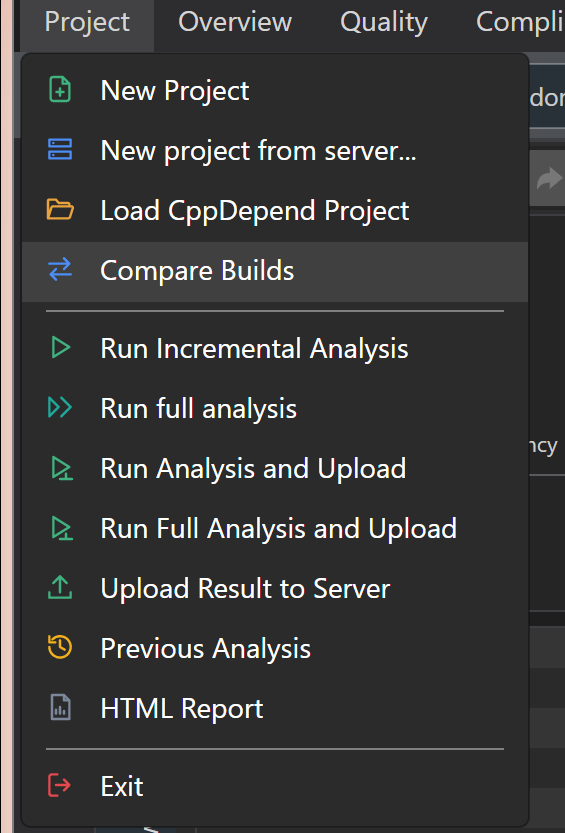
| Menu bar | Project › Compare Builds. |
| Start Page | The Compare Builds card ("Compare results of two analysis"). |
The Compare Analyses dialog
The dialog asks you to select two analyses to compare: the baseline on the left, the current build on the right. Both panels work the same way.
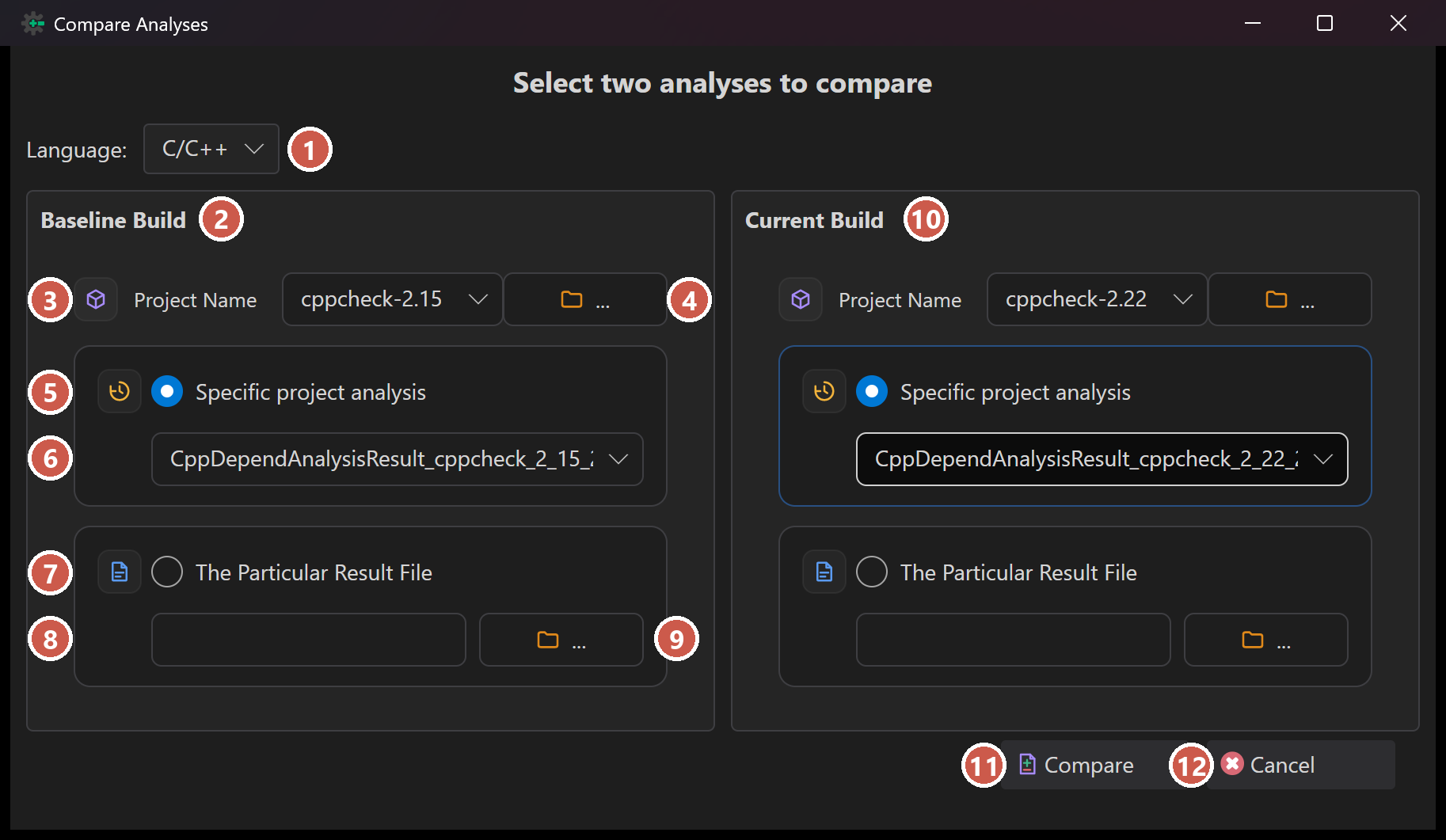
| # | Control | What it does |
|---|---|---|
| 1 | Language | The language of the analyses: C/C++. |
| 2 | Baseline Build panel | The older analysis, the reference the changes are measured from. |
| 3 | Project Name | Picks the baseline project among the projects you analyzed (here cppcheck-2.15). |
| 4 | Browse (...) | Opens a project file (.cdproj) that is not in the list. |
| 5 | Specific project analysis | Uses one of the analysis results stored for that project. |
| 6 | Analysis result list | The results of the project, by date (for example CppDependAnalysisResult_cppcheck_2_15_2026Nov28_12h13.cdar). |
| 7 | The Particular Result File | Uses any analysis result file instead, for example one received from a colleague or from CI. |
| 8 | Result file path | The path of that .cdar file. |
| 9 | Browse (...) | Picks the .cdar file on disk. |
| 10 | Current Build panel | The newer analysis, with the same controls (here cppcheck-2.22). |
| 11 | Compare | Loads both results and opens the comparison. |
| 12 | Cancel | Closes the dialog without comparing. |
Step by step
- The dialog opens with the loaded project on both sides. In Baseline Build, keep or choose the older project.
- In Current Build, open the Project Name list and choose the newer project.
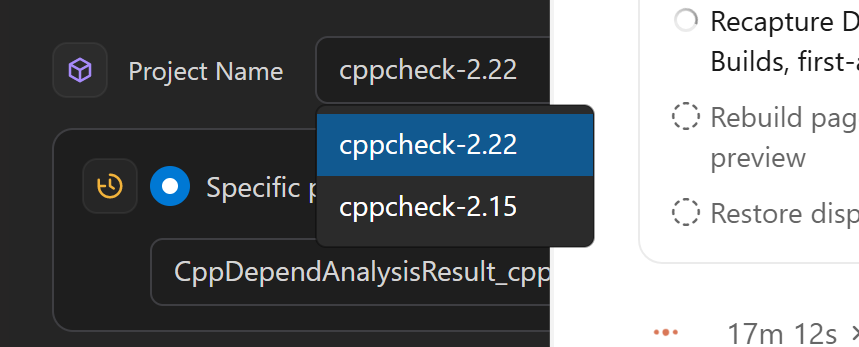
The projects you analyzed are listed. - Check the analysis result under Specific project analysis; the most recent one is selected.
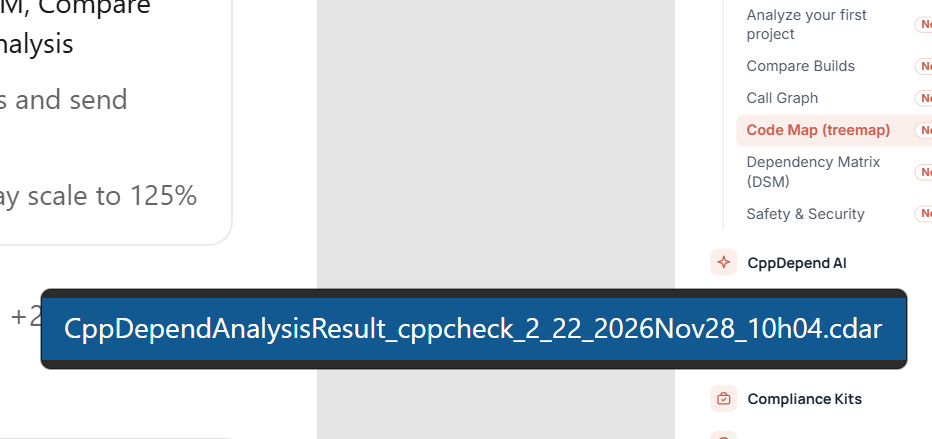
Each analysis of the project is a .cdarfile named after the project and the date. - Click Compare. CppDepend loads both code models (about a minute and a half for Cppcheck) and opens the Quality Dashboard of the current build.
Reading the comparison on the dashboard
The Quality Dashboard now shows the current build, with the baseline in Baseline project info, and a small badge next to every number with its change since the baseline.
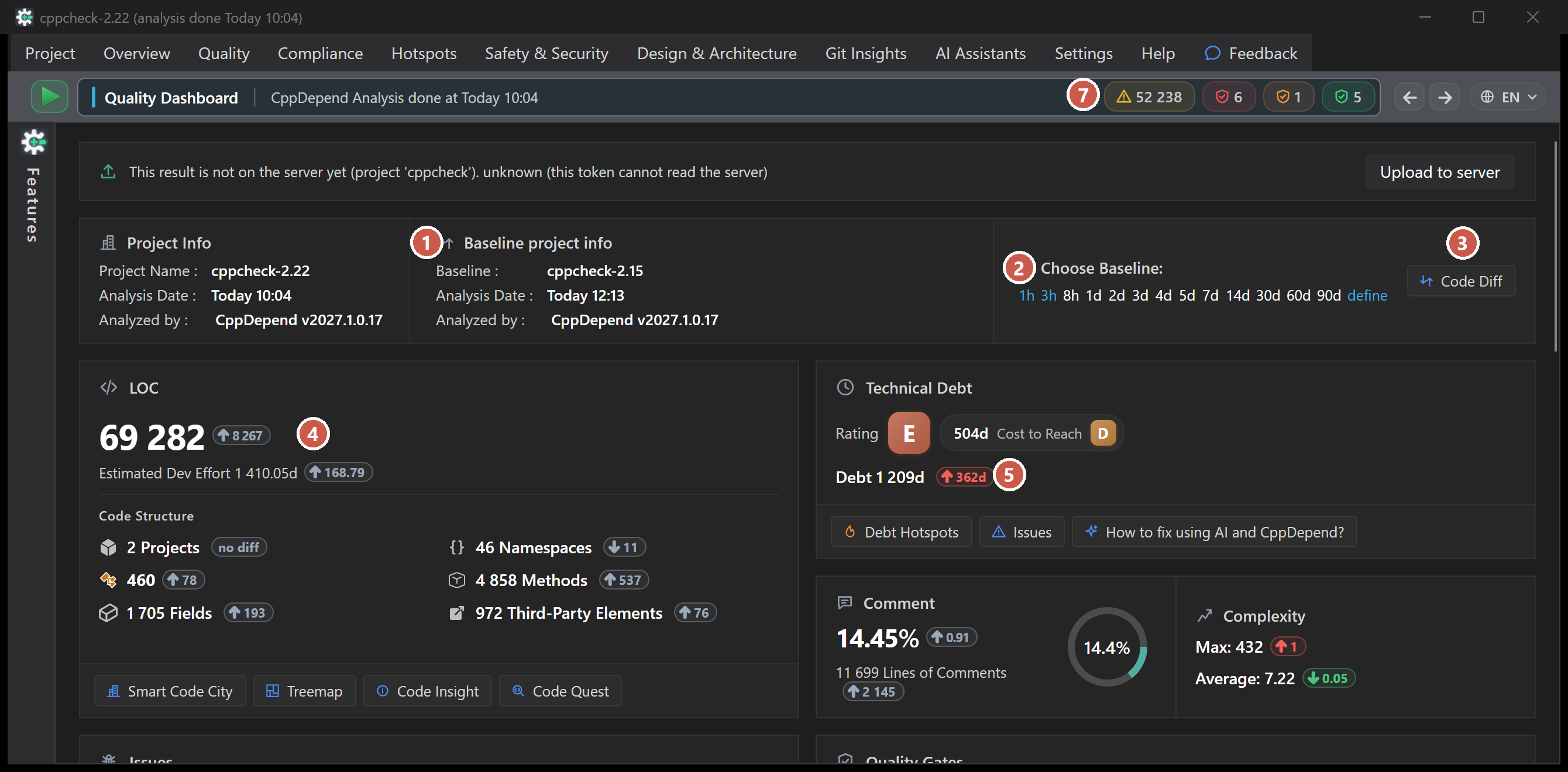
| # | Area | What it shows (2.15 → 2.22) |
|---|---|---|
| 1 | Project Info / Baseline project info | The current build (cppcheck-2.22) and the baseline (cppcheck-2.15), with their analysis dates and CppDepend version. |
| 2 | Choose Baseline | Shortcuts to compare with an older analysis of the same project instead. See Making the baseline permanent. |
| 3 | Code Diff | Opens the list of what changed. See Code Diff. |
| 4 | Size badges | 69,282 lines of code, +8,267; 4,858 methods, +537; 460 types, +78; 1,705 fields, +193; 46 namespaces, −11. |
| 5 | Debt badge | Debt 1,209 days, +362 days, shown in red because it got worse. |
| 6 | Issue badges | Two badges per line: red ↑ issues added since the baseline, green ↓ issues fixed. All issues: +30,611 new, −12,843 fixed. |
| 7 | Top bar | The issue count and the failed, warned and passed quality gates of the current build, with the baseline applied. |
Scroll down for the Issues and Quality Gates tiles:
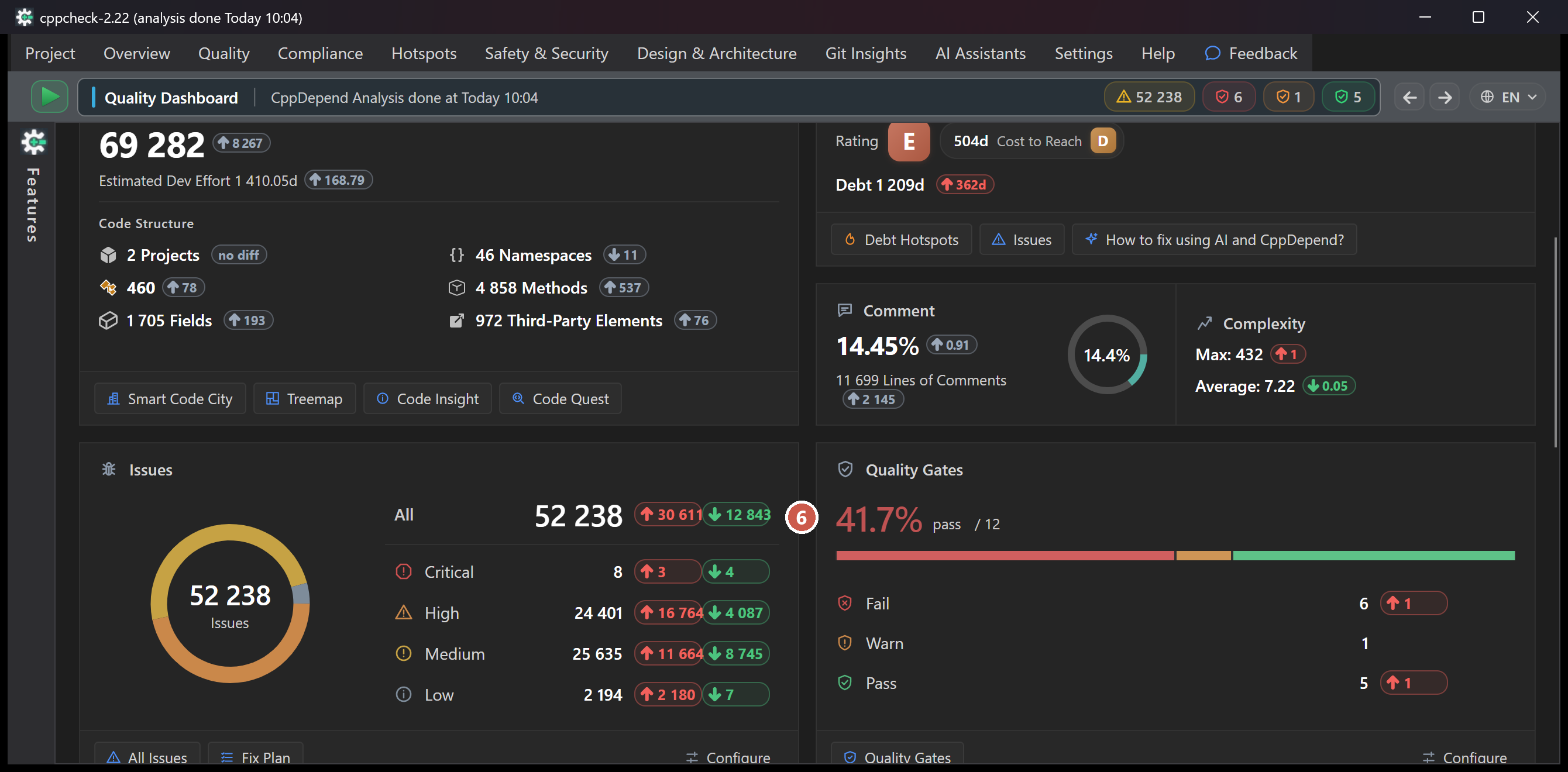
| Severity | Issues in 2.22 | New | Fixed |
|---|---|---|---|
| Critical | 8 | 3 | 4 |
| High | 24,401 | 16,764 | 4,087 |
| Medium | 25,635 | 11,664 | 8,745 |
| Low | 2,194 | 2,180 | 7 |
Why there are more issues with a baseline
Some rules only make sense against a baseline: they check the code that was added or changed, for example From now, all methods added should respect basic quality principles. Without a baseline they report nothing; with one, they report every new method that breaks them. That is why Cppcheck 2.22 shows 38,311 issues on its own and 52,238 once compared with 2.15, and why one more quality gate fails.
Click a badge to list the issues
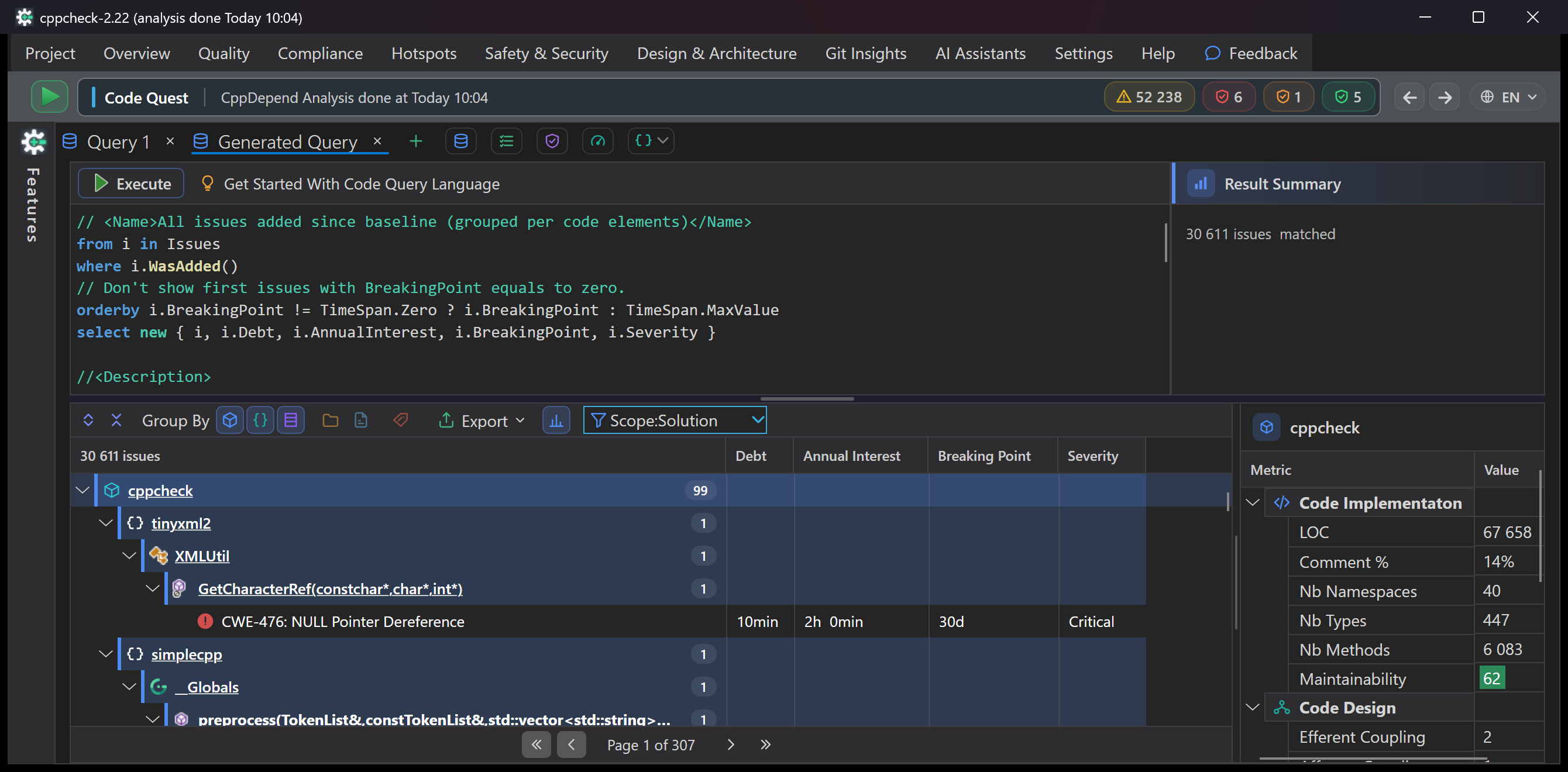
Click the red ↑ 30,611 badge: Code Quest opens a generated query, All issues added since baseline, built on i.WasAdded(), with the 30,611 issues grouped by project, namespace, type and method. The green badge does the same for fixed issues.
Code Diff: what changed
Click Code Diff on the dashboard. The page recalls both analyses at the top (Current Analysis and Baseline) and lists the changes in a tree on the left.
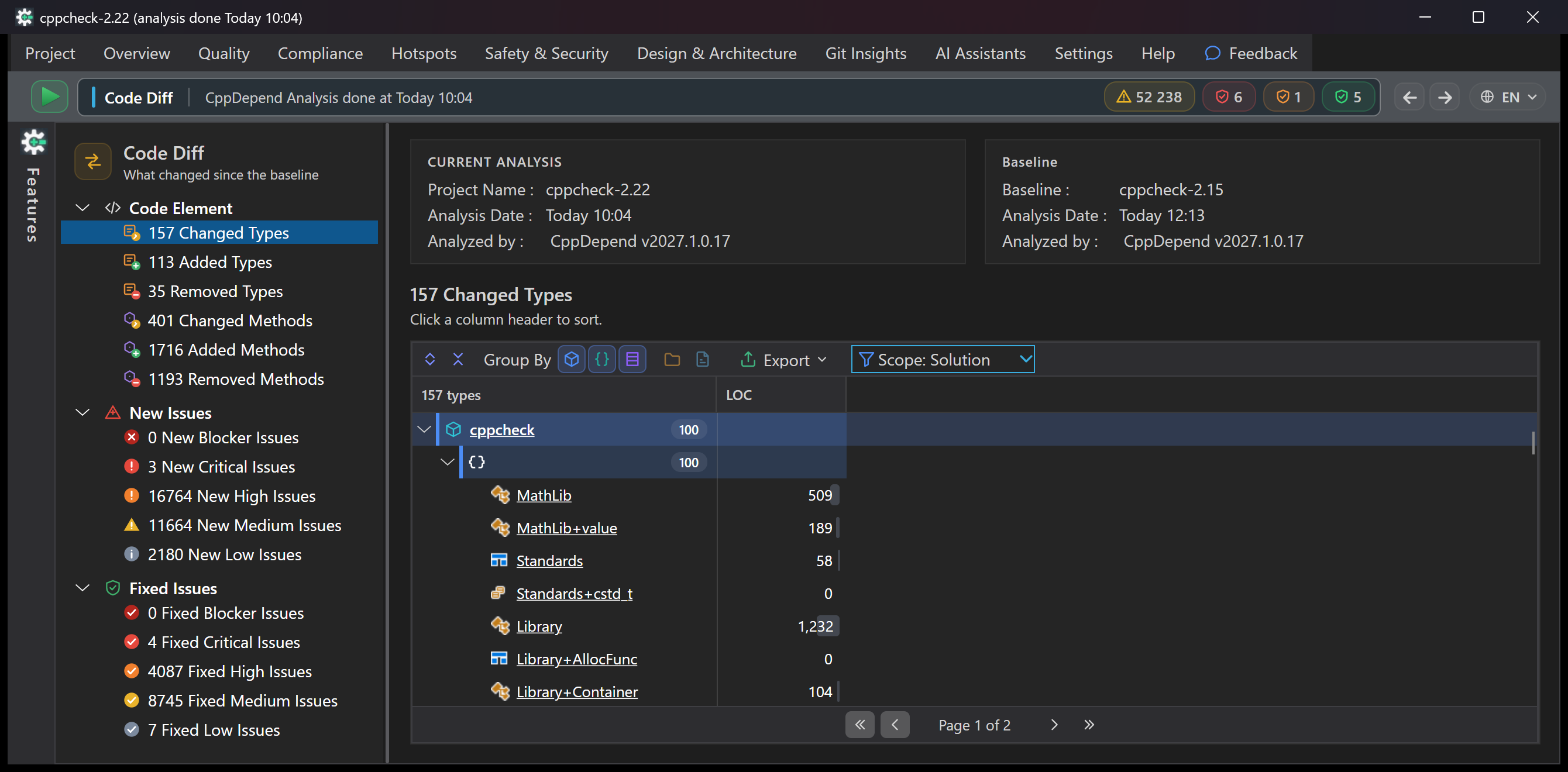
| Group | Entries (Cppcheck 2.15 → 2.22) |
|---|---|
| Code Element | 157 Changed Types, 113 Added Types, 35 Removed Types, 401 Changed Methods, 1,716 Added Methods, 1,193 Removed Methods. |
| New Issues | 0 Blocker, 3 Critical, 16,764 High, 11,664 Medium, 2,180 Low. |
| Fixed Issues | 0 Blocker, 4 Critical, 4,087 High, 8,745 Medium, 7 Low. |
Click an entry to fill the grid on the right. The grid has the same tools as everywhere in CppDepend: Group By project, namespace or type, Export (graph, matrix, treemap, HTML, Excel, XML, text), Scope, sortable columns and paging.
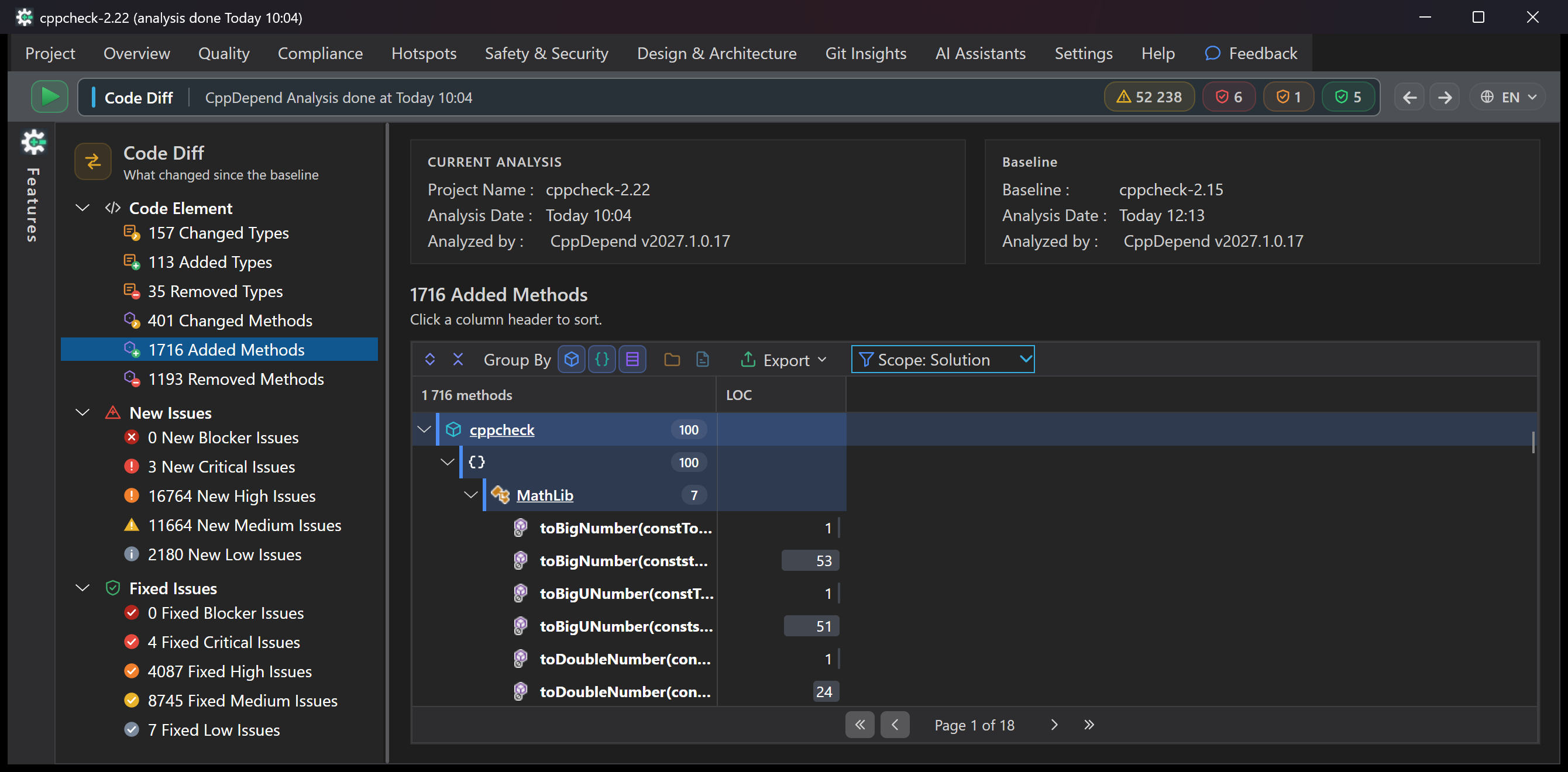
Start with the new critical issues
3 New Critical Issues is the shortest list and the most important one. In Cppcheck 2.22 they are two CWE-476 NULL Pointer Dereference issues, in tinyxml2::XMLUtil::GetCharacterRef and in simplecpp::preprocess, and one CWE-134 Use of Externally-Controlled Format String in printCallstack of the cli project. Each line gives the debt, the annual interest and the breaking point.
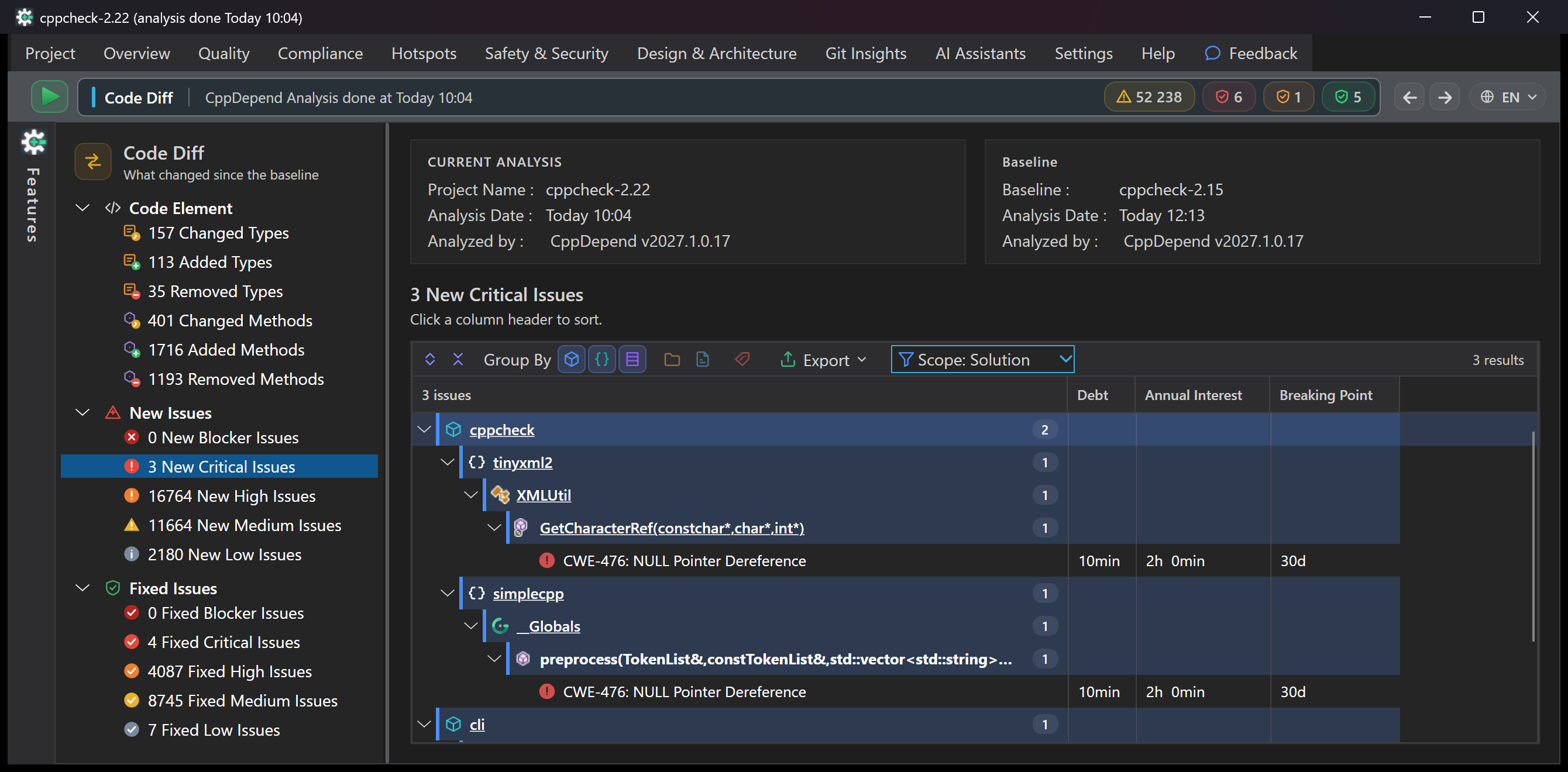
Acting on a changed element
Right-click any element of the grid for the usual actions (Prompt Builder, Show on Code Insight, Show on Dependency Graph, Select...). Review Diff since Baseline opens the old and the new version of the source file side by side, in the file comparison tool of your choice.
Set up the side-by-side diff
Until a comparison tool is set, Review Diff since Baseline only shows this message:
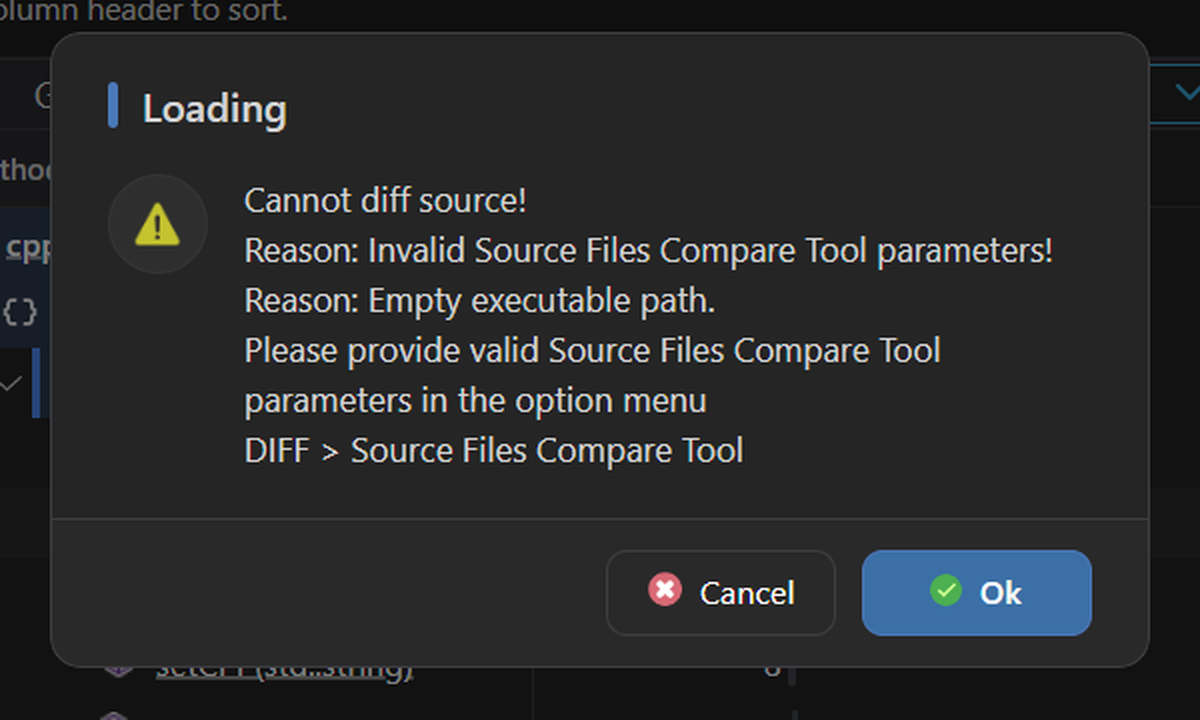
- Open Settings › Editor Tools and scroll to Source Files Compare Tool.
- In Executable file name, enter the full path of the tool, or pick it with the folder button. Environment variables such as
%LOCALAPPDATA%are not expanded: a path that uses them is silently ignored. - In Command Line Args, pass the two files with the aliases
$OldSrcFilePath$(baseline version) and$NewSrcFilePath$(current version).$OldSrcFileLine$and$NewSrcFileLine$give the line of the element when the tool can jump to a line. - Click Save Changes.
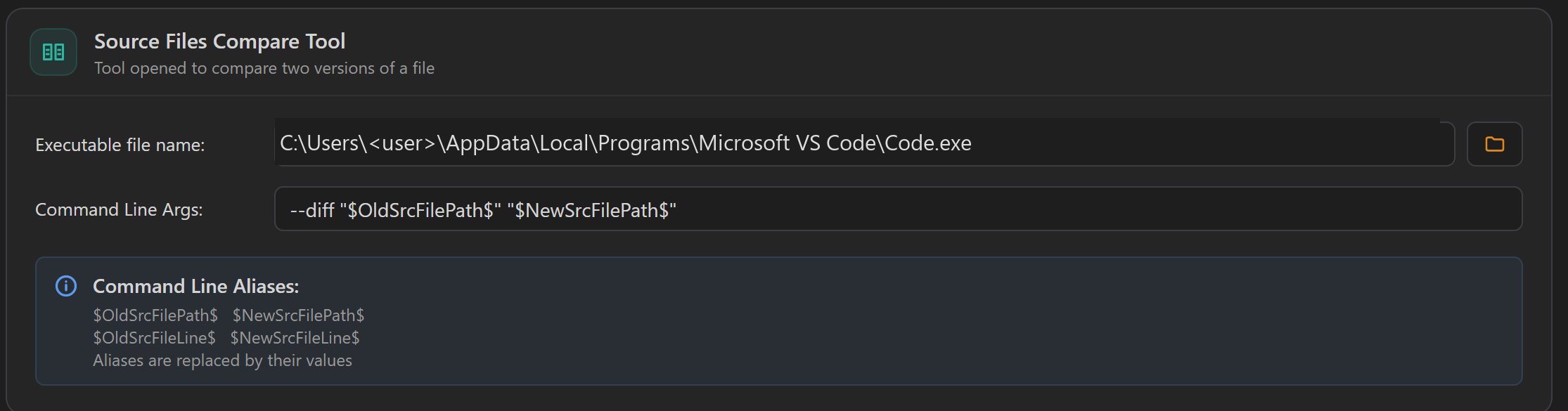
| Tool | Executable file name | Command Line Args |
|---|---|---|
| Visual Studio Code | C:\Users\<user>\AppData\Local\Programs\Microsoft VS Code\Code.exe | --diff "$OldSrcFilePath$" "$NewSrcFilePath$" |
| WinMerge | C:\Program Files\WinMerge\WinMergeU.exe | "$OldSrcFilePath$" "$NewSrcFilePath$" |
| Beyond Compare | C:\Program Files\Beyond Compare 4\BCompare.exe | "$OldSrcFilePath$" "$NewSrcFilePath$" |
Now right-click a changed method, for example Library::load() in 401 Changed Methods, and choose Review Diff since Baseline. The source file of each version opens side by side: on the left cppcheck-2.15.0\lib\library.cpp, on the right cppcheck-2.22.0\lib\library.cpp. Removed lines are red, added lines are green: here the copyright year, <sstream> removed and <utility> added.
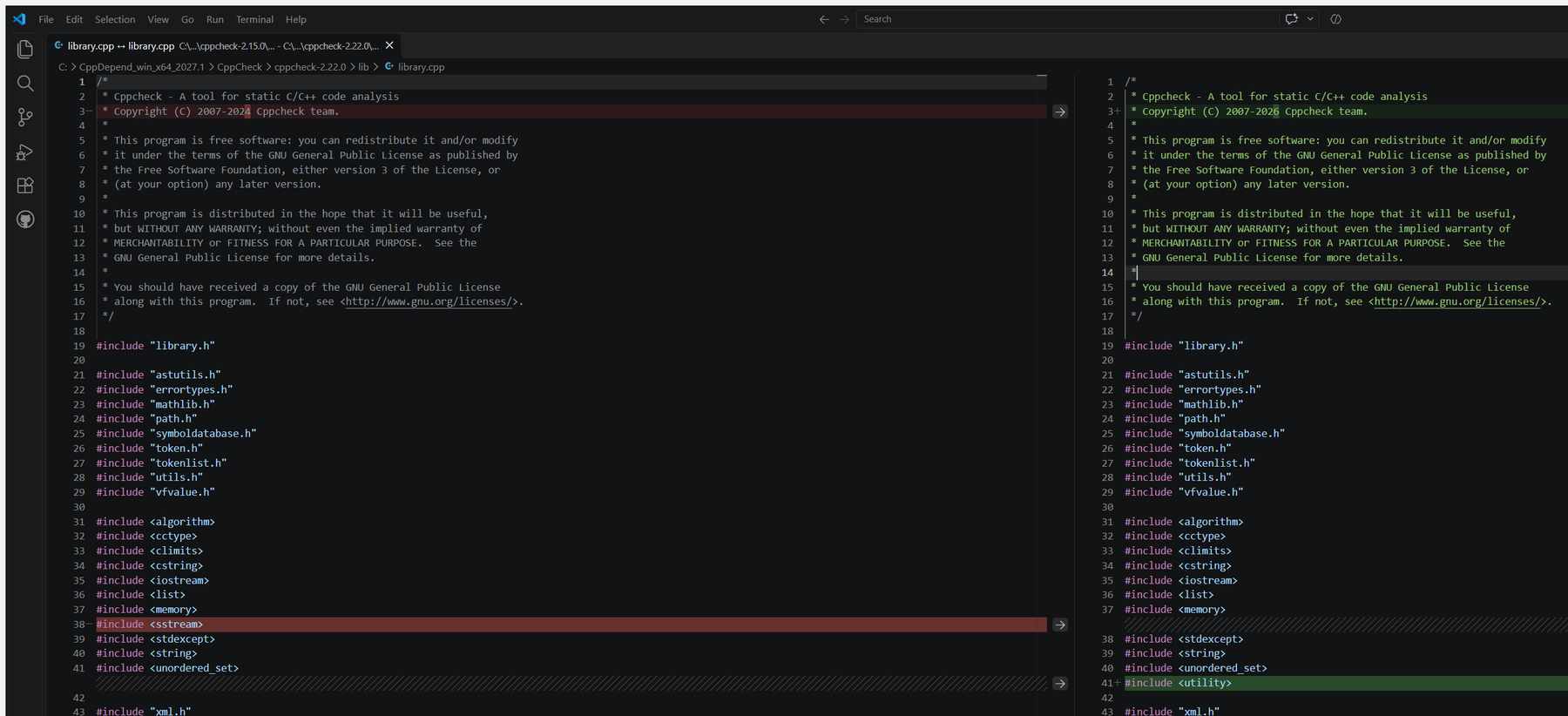
library.cpp, 2.15 on the left, 2.22 on the right.The diff covers the whole file that contains the element. Use the navigation arrows of your tool to jump from change to change.
Making the baseline permanent
Compare Builds is the quickest way to compare two given results. To compare every new analysis with a reference automatically, set the baseline of the project instead.
Choose Baseline shortcuts
On the dashboard, Choose Baseline offers 8h, 1d, 2d, 3d, 4d, 5d, 7d, 14d, 30d, 60d, 90d: compare with the analysis of the same project made that long ago. Shortcuts that match an existing analysis are highlighted (here the analyses of 1 hour and 3 hours ago). define opens the baseline settings.
Baseline Settings

| Setting | Meaning |
|---|---|
| Baseline in UI | The baseline used by the screens of CppDepend when you open a result. Default: Compare with same project (Analysis done 30 days ago). |
| Baseline During Analysis | The baseline used when the analysis runs, for the rules on new code, the quality gates and the reports, in the GUI and in CI. |
| Copy to UI baseline / Copy to analysis baseline | Copies one setting to the other, so both use the same reference. |
| Settings | Opens the Baseline Window below to change the setting. |
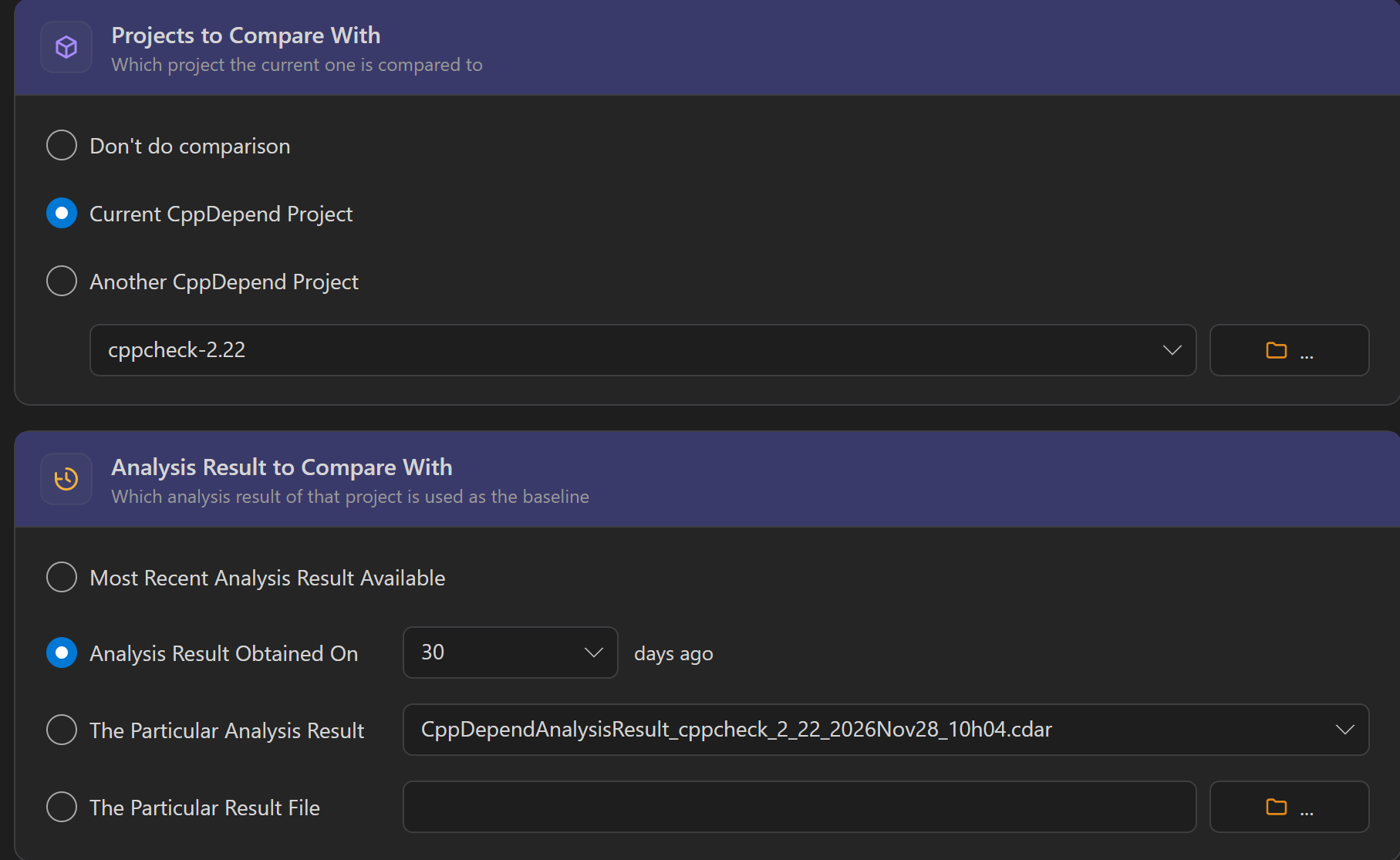
| Option | Meaning |
|---|---|
| Projects to Compare With | |
| Don't do comparison | No baseline: no change badges, no rules on new code. |
| Current CppDepend Project | Compare with an older analysis of the same project (default). |
| Another CppDepend Project | Compare with another project, chosen in the list or with ..., for example the previous release. |
| Analysis Result to Compare With | |
| Most Recent Analysis Result Available | The latest result of that project. |
| Analysis Result Obtained On N days ago | The result closest to N days ago (30 by default). |
| The Particular Analysis Result | One result picked in the list. |
| The Particular Result File | Any .cdar file on disk. |
Click Ok to apply, then Save Changes in the settings page.
Recipes
| Goal | How |
|---|---|
| Review a release before shipping | Project › Compare Builds, previous release as baseline, then Code Diff › New Issues, starting with Critical. |
| List the debt added | Compare, then click the red badge of the Issues tile, sort by Debt. |
| See what was rewritten | Code Diff › Changed Methods, then Export › Export to treemap to see where they are. |
| Prove that a cleanup worked | Compare before and after, read the green ↓ badges and Code Diff › Fixed Issues. |
| Always compare with the last release | Settings › Baseline Settings › Another CppDepend Project, then Copy to analysis baseline. |
Related pages
- Analyze your first project.
- Code Map (Treemap): show a list of changed methods on the map.
- Dependency Matrix (DSM).
Thanks for your feedback. Tell us more or request a feature.